
As a seasoned senior web developer with a wealth of experience in Python, Javascript, web development, MySQL, MongoDB, and React, I am passionate about crafting exceptional digital experiences that delight users and drive business success.
Every programming language needs an environment for developers to write, compile/run code. Go is not an exception to this. Go is a compiled programming language that generates a binary execution file. These binary files are independent of the Go environment and can be run on a machine that does not have Go. The makers of Go took a few interesting decisions that made Go extremely fast and efficient. We will discuss one of those design decisions in this blog.
Installing Go
You can install Go on Windows, Mac, and Linux. The instructions are clearly stated on their official website. Once you have installed Go, you can check whether Go is properly installed by running the following command.
go version

# Prints: go version go1.22.5 windows/amd64
If your terminal fails to locate go command, try the following processes.
Restart your terminal
Maybe go is missing from the system variable’s path, or another program named go is already installed.
In Mac/Linux, run
which go. It should print /usr/local/go/bin/go.In Windows, run
Get-Command go. In the output source, you should see C:\Program Files\Go\bin\go.exe.
Update the system variable path to include Go or move it higher to increase preference.
In Windows, update the system variable’s Path.
In Linux, set the Path variable, and export PATH=/usr/local/go/bin:$PATH in .bashrc or .zshrc.
Go Workspace
Go workspace is the directory where Go executables are managed and stored. Before Go v1.11, it was mandatory to create the Go projects and run them within the Workspace. In Go v1.11, Go modules were introduced, and projects can be created anywhere and structured as developers feel right. However, Go workspace remains an important part of the Go environment. All third-party Go module binaries and the compiled package files are stored in the Go workspace. With the latest version, the Default Go workshop gets registered into the system as GOPATH. To see the GOPATH, you run the following commands in Windows CMD and Linux shell, respectively.
echo %GOPATH%echo $GOPATH
If you want, you can set a custom GOPATH. Do this only if you are sure.
In Windows, go to user variables and update GOPATH to
C:\Users\YourName\mygopathIn Linux, edit .bashrc/.zshrc and add
export GOPATH=$HOME/mygopath
Because you have the latest Go version, you can create and run your Go program from any directory. Open a directory where you want to write your first Go program. Create a Hello Developers! application. Create a file named hello.go in the directory’s root. Paste the following code. Right now, you can use any text/code editor.
package main

import "fmt"

func main() {
    fmt.Println("Hello, Developers!")
}
Open a terminal. The present working directory should be the one where you create hello.go file. Run the following command.
go run hello.go

# Hello, Developers!
You have created your first Go program. Now let’s run a linter on the file. Install go linter using following command.
go install github.com/golangci/golangci-lint/cmd/golangci-lint@latest
This fetches the golangci-lint binary and puts it in the GOPATH/bin directory.
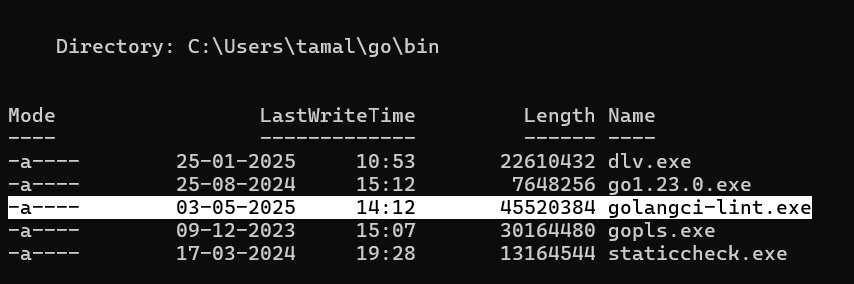
To run the linter, execute the following command.
# Windows
C:\Users\username\go\bin\golangci-lint run
To use the golangci-lint run command without the GOPATH prefix, edit the environment variable PATH. Get the GOPATH value and add bin with OS specific slash.
In Windows, edit the PATH variable in the user variables. Add C:\Users\tamal\go\bin to the list of paths.
In Linux, edit .bashrc/.zshrc and add the following line: export PATH=$PATH:$GOPATH/bin. Make sure you have already set the GOPATH environment variable as instructed above.
Restart the terminal. If using any code editor, restart it. Then run the following command in the terminal.
golangci-lint run

Now you can run the installed Go packages directly from the command.
Generally these PATHs are already configured when you install Go. In case you face any issue after installing Go, write a comment. I can guide you better. These are a bit more OS oriented. If you are not familiar how Windows or Linux manages System and Environment variables, this may feel quite complex to follow. However, I would suggest you to spent some time understanding the OS itself.
Go Commands
There are a few Go commands that you need to learn first.
Go run
This command is to execute the Go program. Let’s go back to hello.go file. Edit the file and add another line to print: This is my First Go Application.
package main

import "fmt"

func main() {
    fmt.Println("Hello, Developers!")
    fmt.Println("This is my First Go Application")
}
Go to the terminal and execute
go run .\hello.go
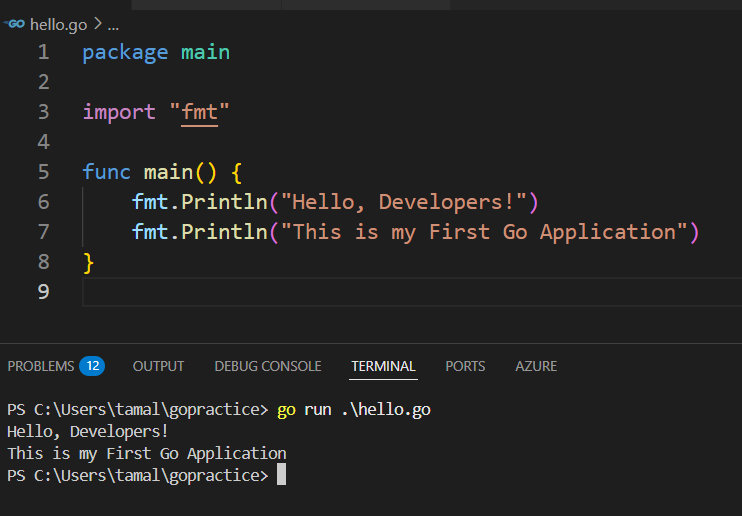
You have successfully run the updated hello application written in Go. Go run executes your code in the following steps.
Compiles your code
Check for errors
If no error is found, it generates a binary file
Execute the binary file
If you check your directory, you will not see any binary file. Go run creates a binary file in a temporary directory. Once execution is done, Go deletes the binary from the temporary directory. This is why the run command is useful when you run tests, start a small application, and use Go as a script.
Always use go mod init command to initialize your project. I will discuss about the Go module in next blog and show you how to use go mod init command.
Go build
However, for large projects where you need to share the final binary with others or need to deploy to the cloud, the run command is not used. This is when the go build command is used. Open the terminal and run the build command.
go build .\hello.go
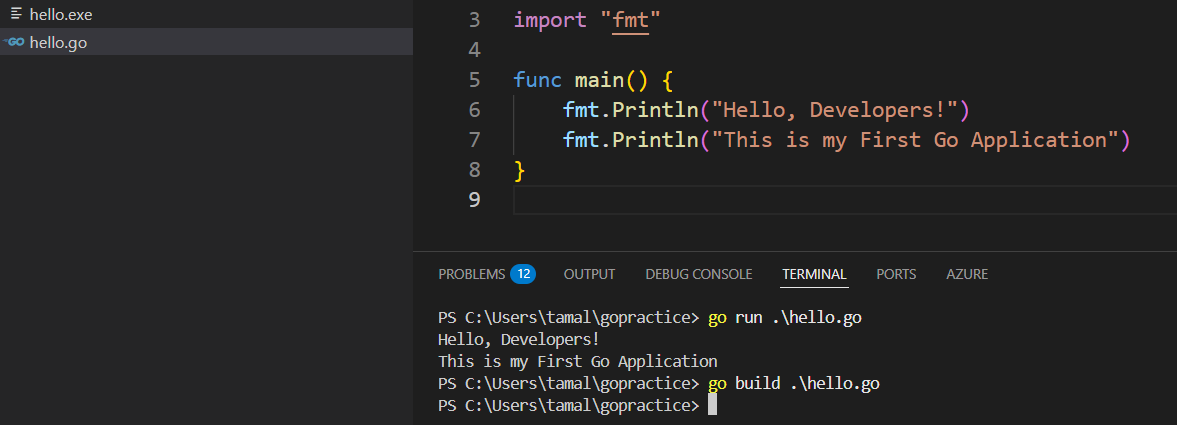
Now you can see a hello.exe file in the same directory as hello.go. You can directly run this hello.exe file in the terminal.
.\hello.exe
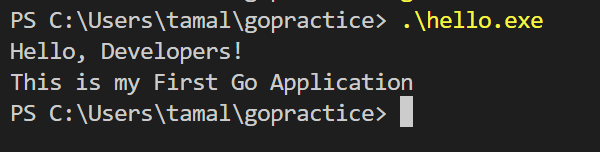
If you want, you can choose the name of the compiled application using the -o flag.
go build -o hello_devs.exe .\hello.go

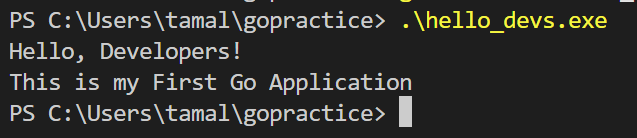
You can see that a new file named hello_devs.exe is created. If you run this file, you will get the same result.
.\hello_devs.exe
Go fmt
This command is used to format the Go code. Update the hello.go file with the following code.
package main

import "fmt"

func main() {
    fmt.Println("Hello, Developers!")
    fmt.Println("This is my First Go Application")}
In the above code, I have removed the import fmt statement and changed the position of the ending curly braces. This is not an ideal format to compile your code. To format the code, run the following command.
go fmt .\hello.go
The formatter command fixed the code format and saved the changes automatically.
Go formatted can be installed with different code editors. In VSCode, the Go extension will automatically run the formatter when you save a .go file. Unlike many programming languages, Go follows a strict formatting style. This allows the Go compiler to compile the program faster. The compiler does not have to waste a lot of time interpreting the code format. Like many programming languages, Go uses a semicolon,;, to mark the end of a line. This is called the semicolon insertion rule. However, this semicolon is not used while writing code. Go compiler adds the semicolon during code compilation. This is why Go fmt does not auto-fix wrongly placed braces all the time. In the following code Go compiler assumes that func main() is the end of the function.
func mian()
{
    fmt.Println("This will raise Error!")
}
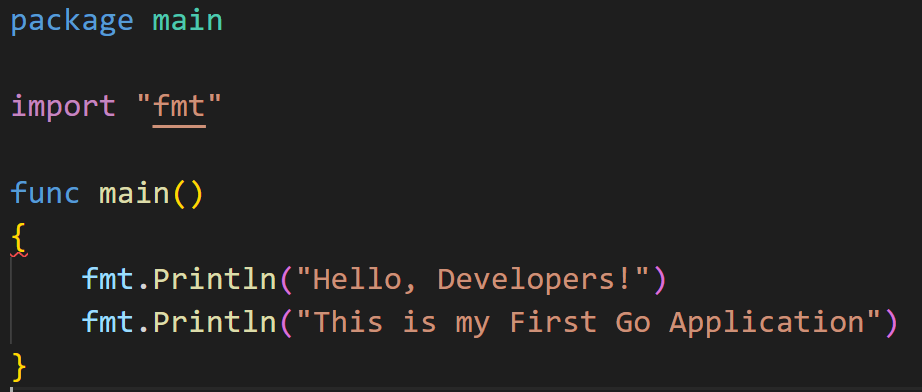
This is because the Go compiler adds a semicolon after these characters,
), }, ++, --, break, continue, return
There are other tokens as well, but these are all you must know. So, when the compiler reads the first line, func main(), it assumes the function declaration ended there. Similarly, in the following code, Go fmt does not fix the error.
func mian()
{
    fmt.Println("This will raise Error!")
}}
But in the following code it does format the code.
func mian() {
    fmt.Println("This will raise Error!")}

// Think why this one gets fixed. If you want write the reason in comment.
So, before compiling, double-check your code because the Go formatter cannot handle all the cases.
Working with Binaries
The third-party Go packages you install from the web will be in binary format. This becomes one of the biggest advantages of Go. This is one of the few design decisions that the creators of Go took, which allowed Go to support packages from previous versions.
The installed packages are in binary form, which is not dependent on the installed version of Go. Also, you can create your compiled applications in binary format and use them in your other projects. You may face an issue only when a feature is discarded or outdated, which is extremely rare.
Code Editor
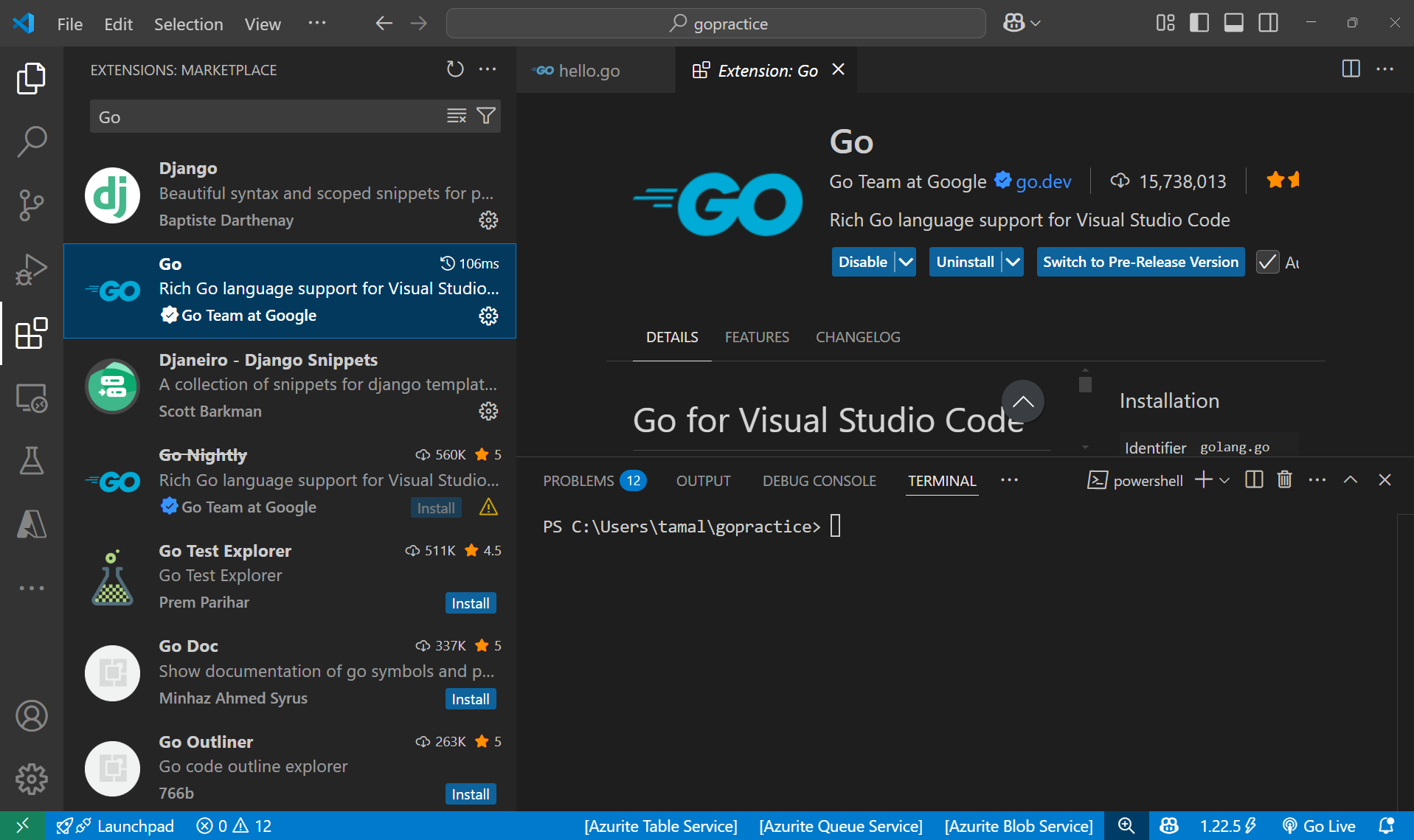
VSCode is a great code editor. You can install the Go extension. You can check how to configure and use it on their official website. However, the Go extention is pretty good with the default configuration.
You can use the GoLand editor. This is a product of JetBrans. This is paid software, but you can try the free trial version before purchasing it.
I use VSCode. This is because I don’t have to change my code editor for different programming languages. VSCode is very powerful and comes with great extensions. If you are a 10x developer and want to use Vim as the code editor to show off, just install VSCode Neovim. There are hundreds of other extensions that you can install and configure to boost your productivity.